
After building out my new rack in the garage It was time to upgrade some aging hardware that’s not quite up to the task of running some of my EVE-NG networking labs.
I decided on a MinisForum A2 to power my home lab. I purchased the bare bones system for about $800 (AMD Ryzen 9955HX) and then added 32Gb of DDR5 ram for another $250. I already had a spare SSD so that kept the price just around $1150 or so. I wanted to max out the ram but 128GB is about $1000 in Dec 2025. I’ll upgrade to 128GB at some point if I see a good deal.
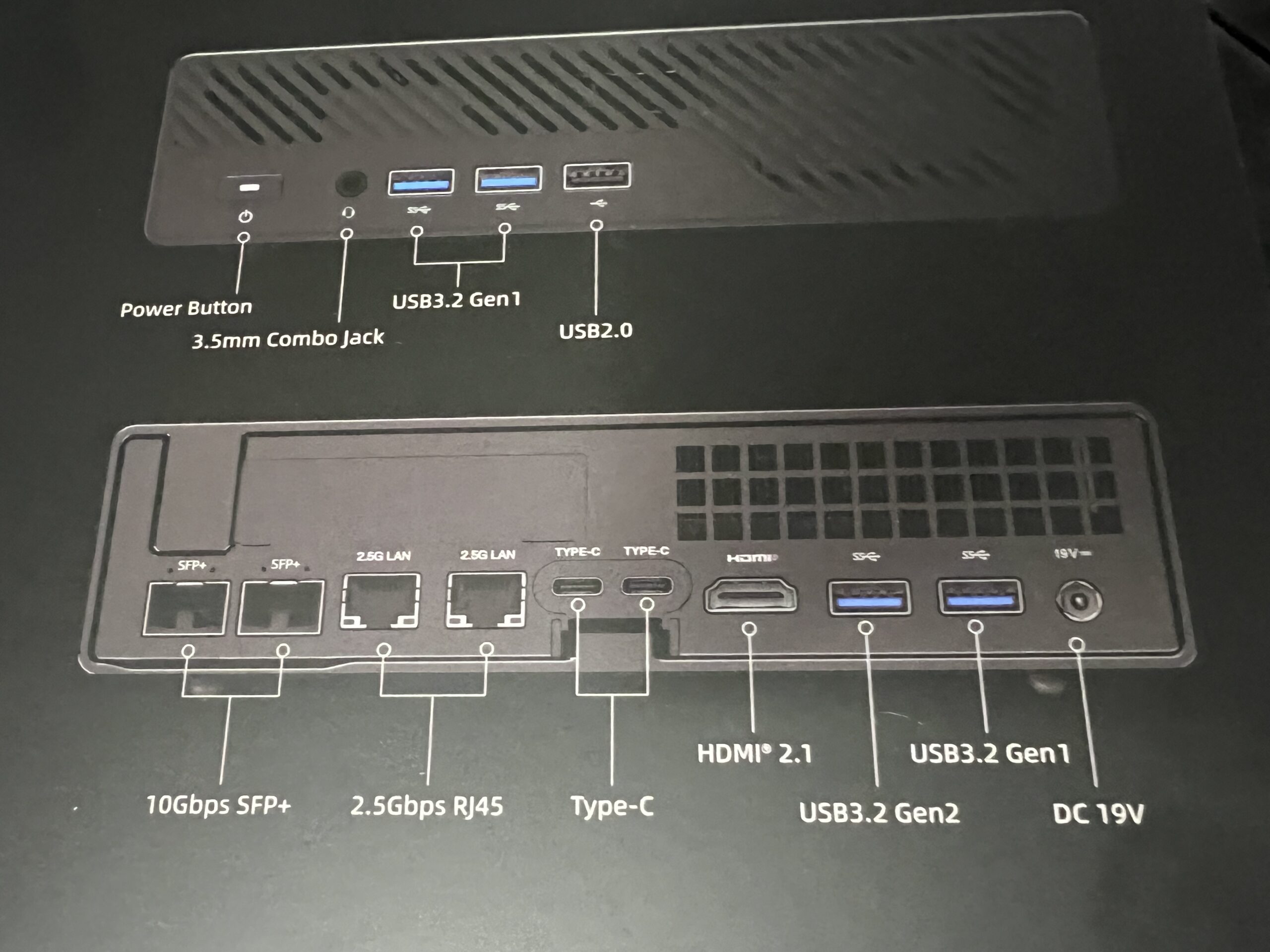
Lots of ports for such a small box.
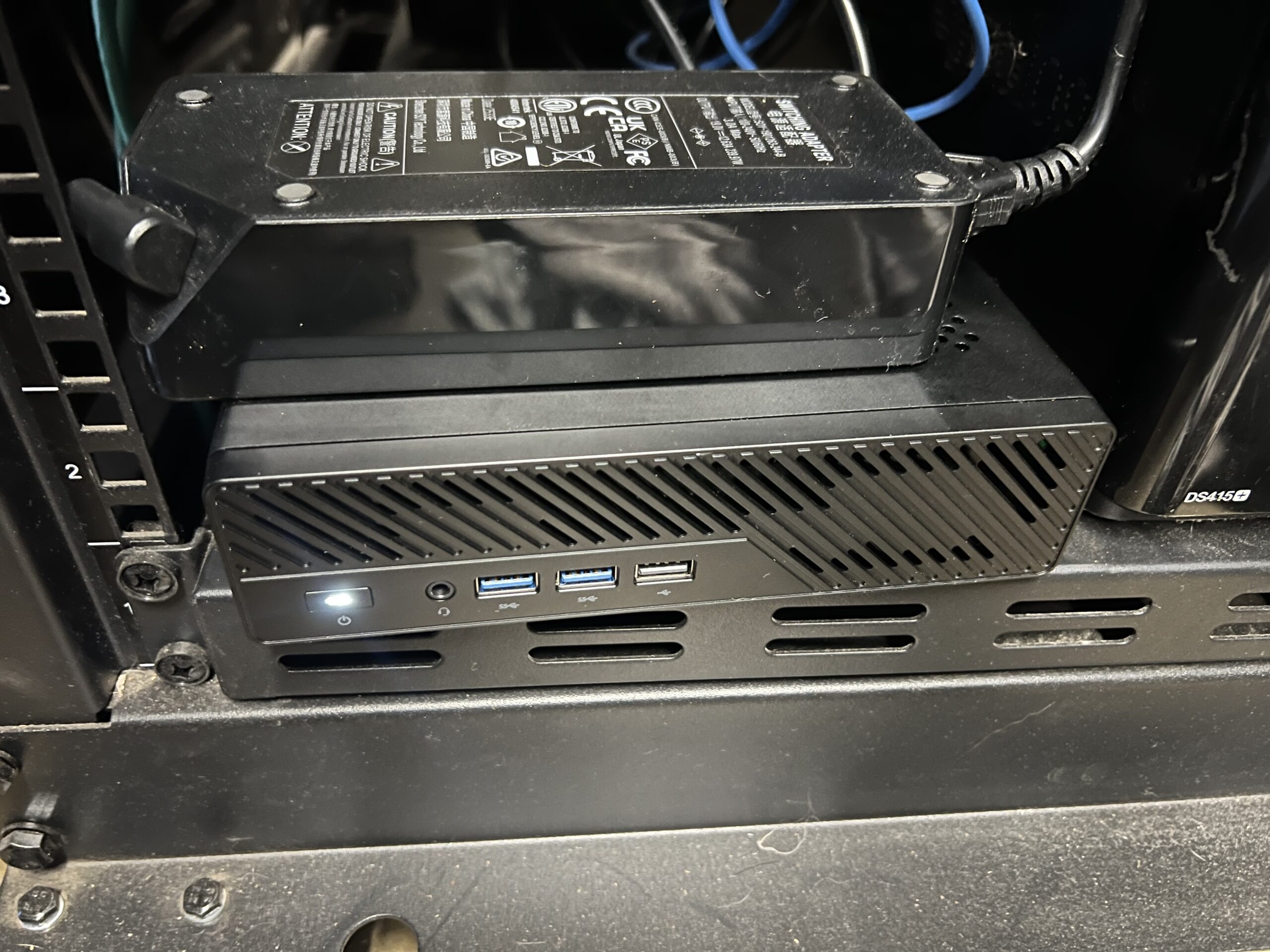
The power brick is HUGE for such a small box.
The only issue I ran into (so far) is that I thought it was dead on arrival because it would boot to a black screen and I could never see the BIOS options, just a quick flash screen. The fix was easy enough, you just have to be very quick mashing the Delete key to make sure you catch the boot options, it seems very quick to move along if you fail to catch it.
Proxmox installer won’t boot, goes to black screen
- need to hit “e” and edit the quiet boot string and add to end
- nomodeset
- Press
Ctrl-XorF10to boot
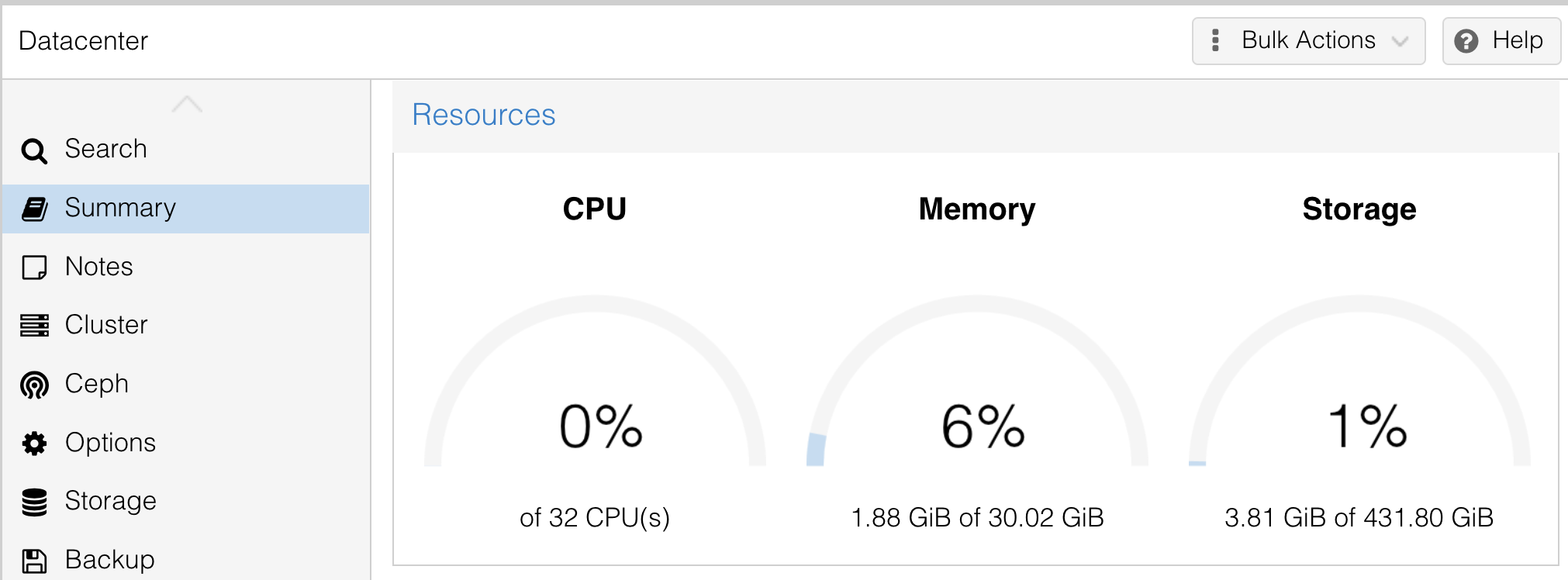
PROXMOX Virtual Enviornment 9.1.1 is pretty amazing, Looks like an ESXi killer to me!
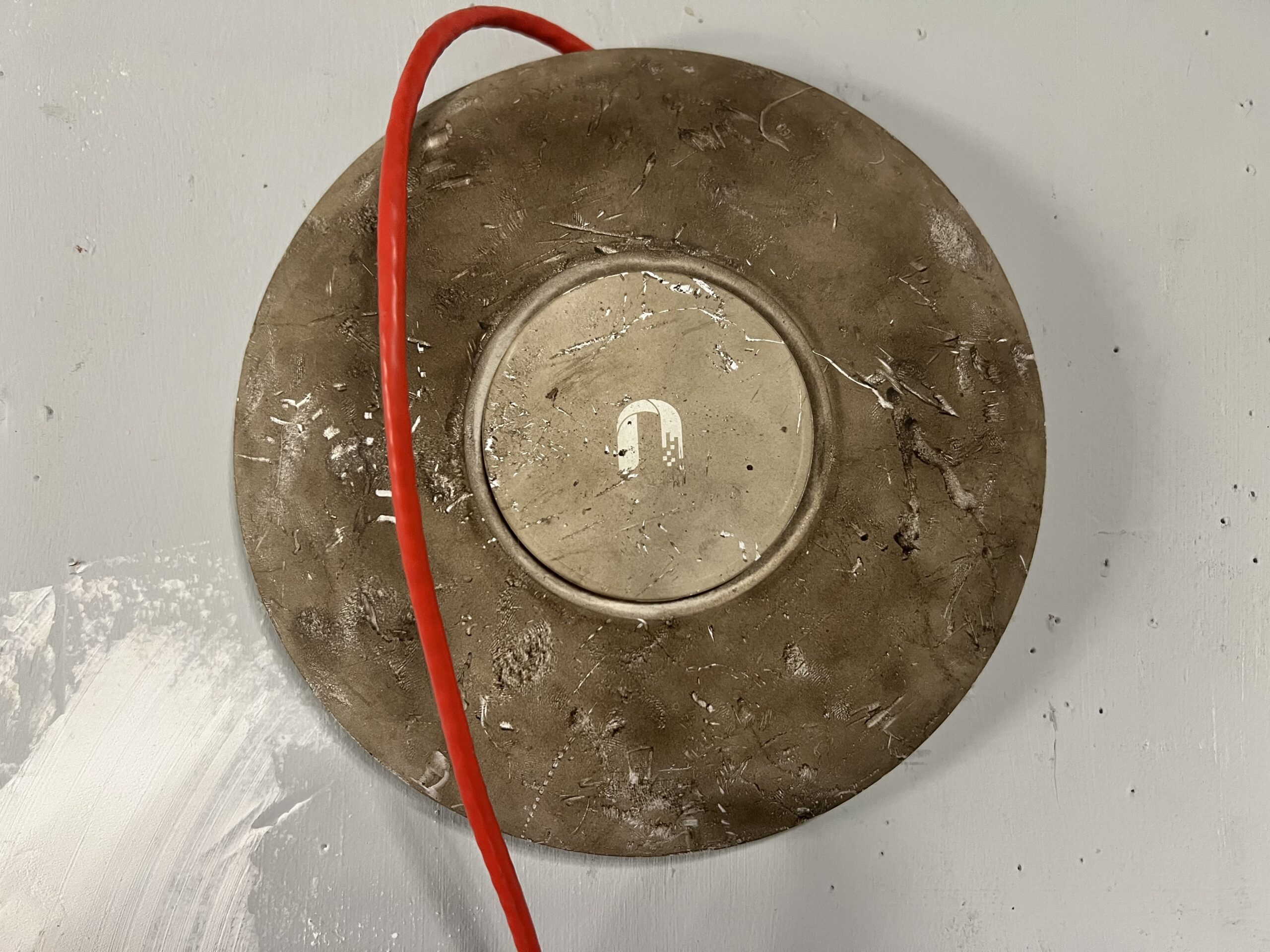
The Ubuquiti AC-Pro served me well for many years, but it’s time to upgrade!
The U7-Pro has a ceiling mount now for better reception but the LED is INSANE!
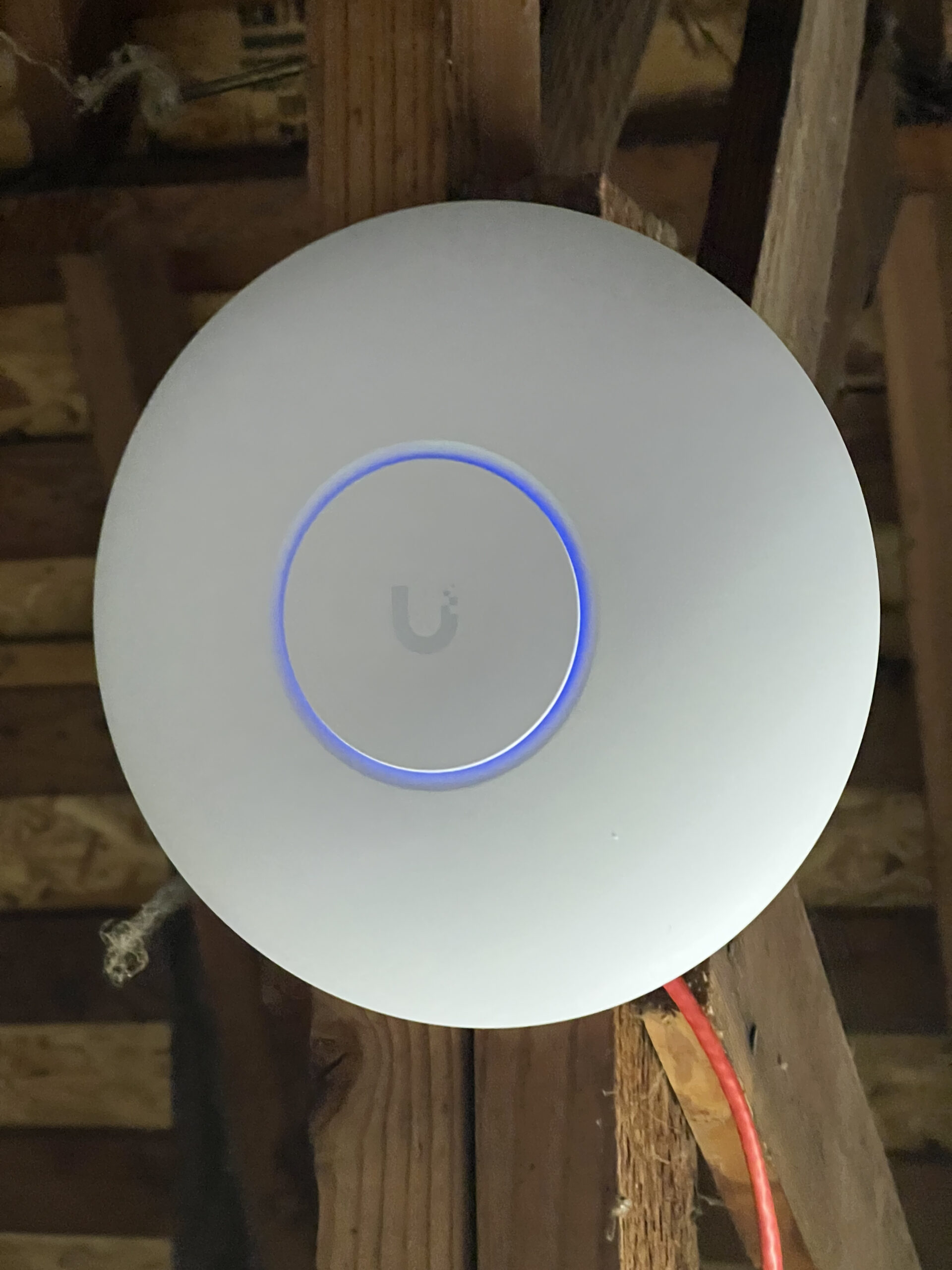
This thing lights up the entire garage and is obnoxious as all hell!
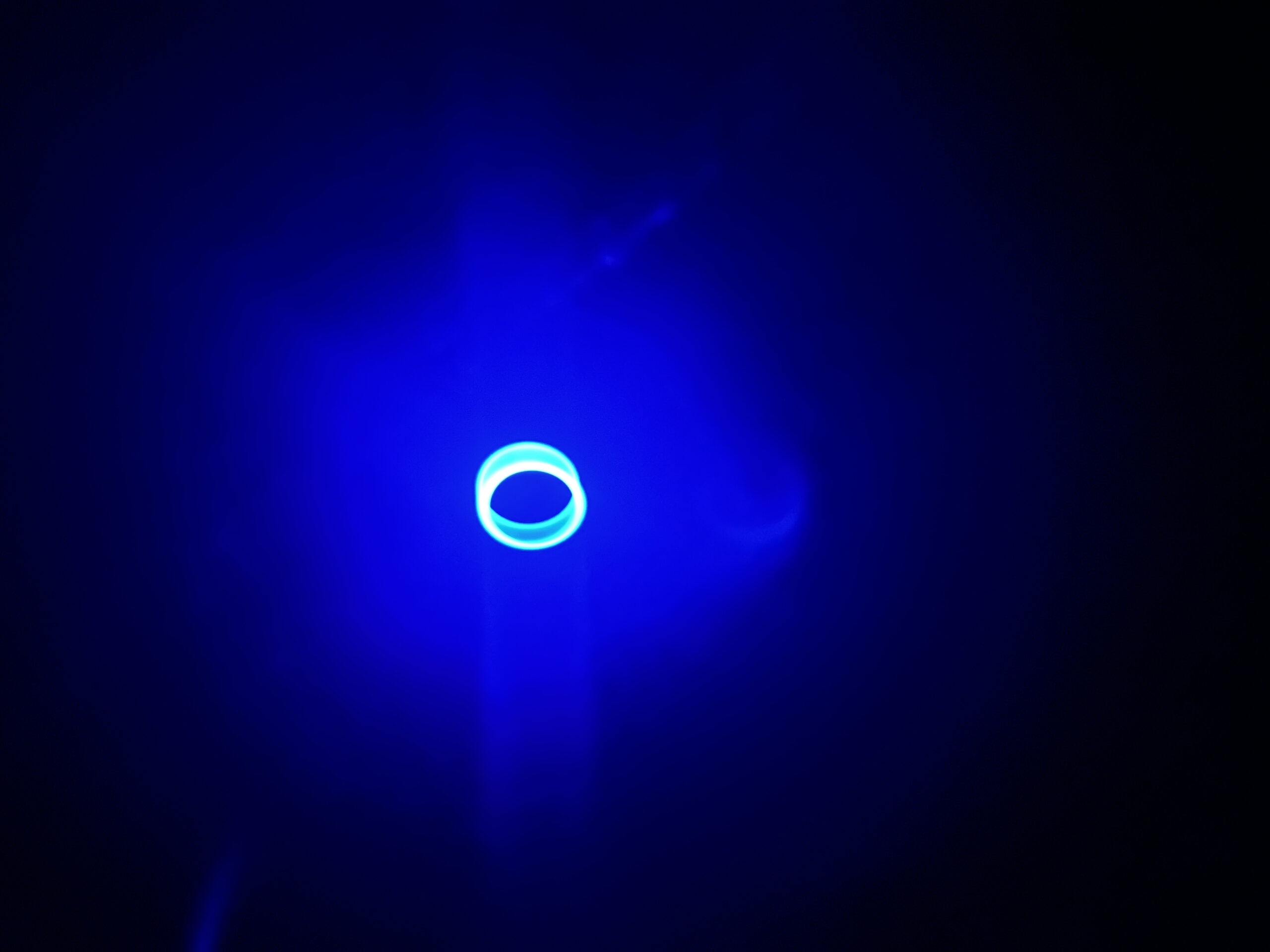
The GUI has a setting for adjusting the brightness, but it does not work. It’s on or off only. However, I did manage to find a post where someone mentioned you could run a command from SSH and I’m happy to report that works and the blue light is now at 5 percent 🙂
echo 5 > /sys/class/leds/led_blue/brightness
Some other useful commands that can be run from SSH
System Info
info
Model:       U7-Pro
Version:     7.0.64.15828
MAC Address: a8:9c:6c:56:43:bc
IP Address:  192.168.1.1
Hostname:    U7-Pro
Uptime:      3059 seconds
NTP:         Not synchronized

Status:      Unable to resolve (http://unifi:8080/inform)
Adopt the AP
set-inform http://192.168.0.8:8080/inform
Adoption request sent to 'http://192.168.0.8:8080/inform'. Use UniFi Network to complete the adopt process.
One other really important thing is that the AP will change login after initial provisioning from ubnt/ubnt to admin/random_password. The new password can be found at the following link http://127.0.0.1:8080/manage/default/devices
Finally, I updated my core switch to a managed 10G switch with POE+ and 2.5G LAN ports. I purchased a XMG1915-18EP and it seems to do the job well enough. The 180W POE power budget seems like way more than I need but it’s a cool feature and my AP works great.
The biggest annoyance I’ve found is you must configure everything via GUI. It has CLI, but only for show commands! It made setting my network up more challenging that it had to be.
